 QuickLatch
01 / Capture
There.
That's the detail.
Open Halo. Choose the region, window or screen. Keep a floating reference beside your work, without losing your place.
See Halo up close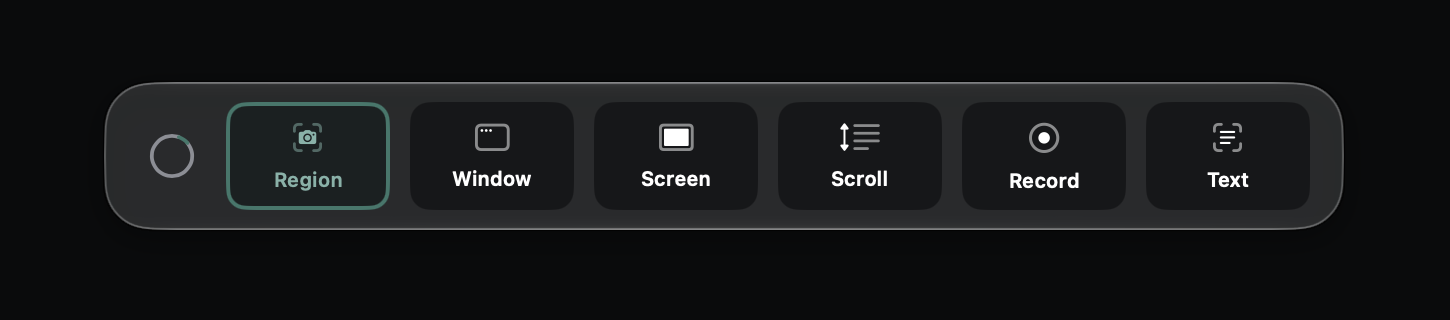
A visual workspace for Mac
Keep the reference.
Share the point.
For the detail you spotted.
And the idea you don't want to lose.
A little less friction
Three moments. One place to keep the context.
01 / Capture
Open Halo. Choose the region, window or screen. Keep a floating reference beside your work, without losing your place.
See Halo up close02 / Find
Save what matters in your private Library. Pro search finds the words inside your captures, even when you forgot what you called them.
Explore the Library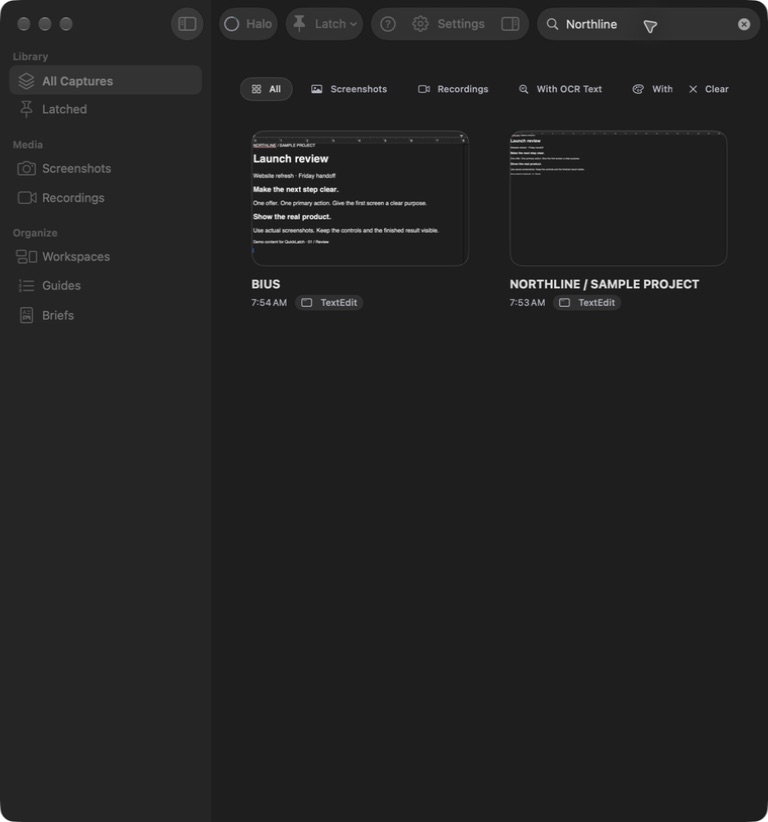
03 / Compose with Pro
Bring two to eight images into a Brief. Crop the detail, mark the important part, and add just enough context.
See the finished handoff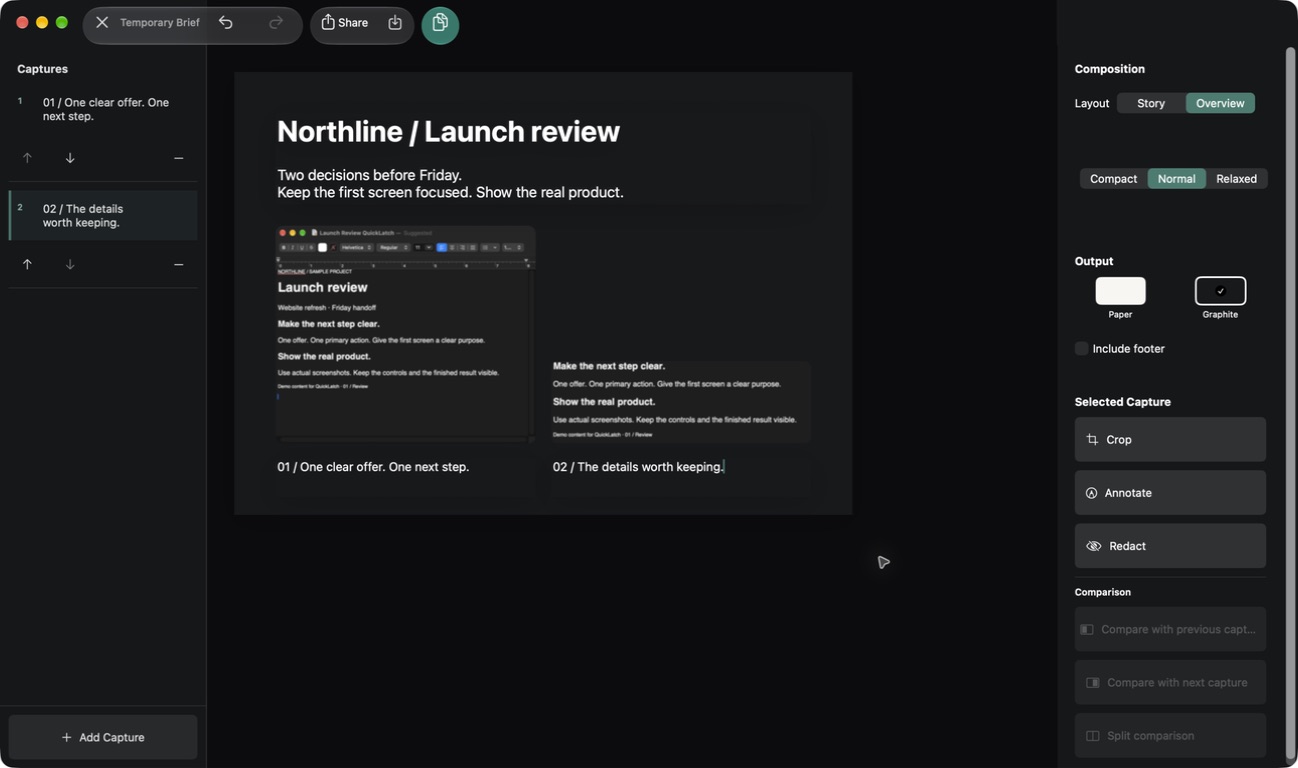
The handoff / QuickLatch Pro
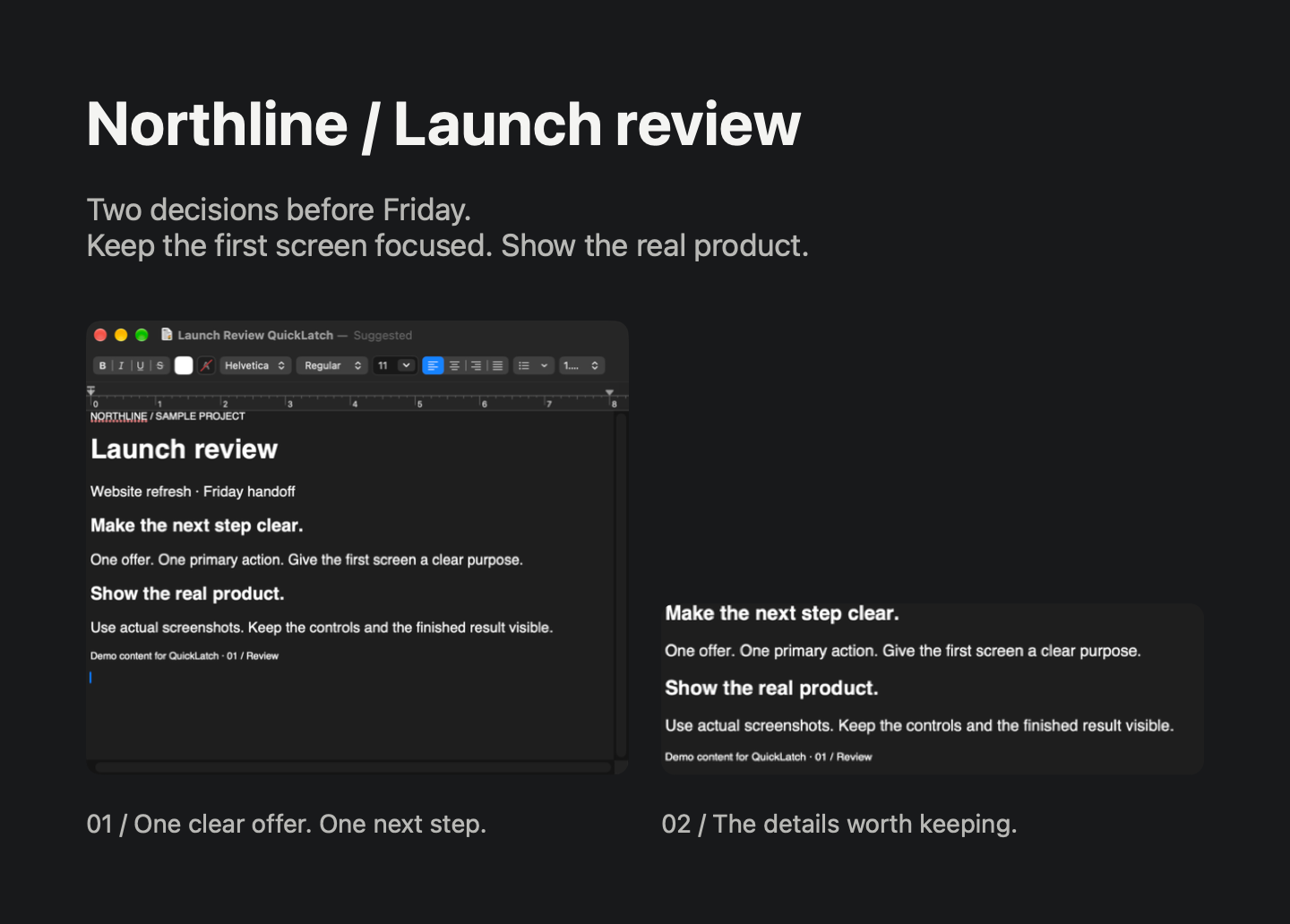
The reference, the detail, the decision. Together in one Brief you can copy, share, or export as PNG, JPEG or PDF.
Room to do more
Build a Tutorial from saved captures and export ordered instructions as PDF or Markdown. Included free.
Record your screen with Pro when a still image is not enough.
Try one successful screenshot-to-code preview per install. Pro adds code copying and export.
A simple starting point
The everyday essentials.
Basic capture, Halo, floating references, image copy and export, saved Library, and Tutorials. Plus one successful screenshot-to-code preview per install.
$19.99 USD / planned one-time price
Briefs, Library search, workspaces, screen recording, and screenshot-to-code with code copying and export. No subscription. Your existing captures remain accessible without Pro.
Captures stay in the app sandbox on your Mac. Text recognition happens on device. Optional iCloud Drive sync stays off until you turn it on.
Read the privacy policyComing to your workflow
QuickLatch is preparing for release. A public download is not available yet, and no release date is announced.
Contact QuickLatchmacOS 14 or later.